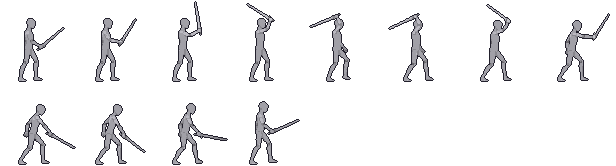
揮劍斬擊精靈圖動畫
蓄力、快速出招和收招。出招影格是放判定框(Hitbox)的位置;我們刻意讓它很短,讓攻擊手感俐落。
PNG 精靈圖集 + JSON 影格資料。任何專案都能免費使用,包括商業遊戲。
規格
- 影格數
- 12
- 建議 FPS
- 12
- 影格尺寸
- 77×83
- 類型
- 單次
- 視角
- 側視
把你的角色套用到這個動作
描述或上傳一個角色,我們會把它套到這個動作上:相同的節奏、相同的著地點,用的是你的美術。
需要 10 點
在引擎中使用揮劍斬擊動畫
精靈圖集是一列(或幾列)等大的影格,沒有內距,所以任何引擎都能依影格尺寸切割。以下是最常用引擎的最簡設定,已經填好這個動作的影格數、尺寸與影格率。
這是單次動作:播放一次,結束後切回待機(死亡動畫則停在最後一格)。
Godot 4
# AnimatedSprite2D > SpriteFrames > "Add frames from sprite sheet"
# Horizontal: 12, Vertical: 1, select all 12 frames.
$AnimatedSprite2D.sprite_frames.set_animation_speed("attack_slash", 12)
$AnimatedSprite2D.sprite_frames.set_animation_loop("attack_slash", false)
$AnimatedSprite2D.play("attack_slash")
# Project Settings > Rendering > Textures > Default Texture Filter = Nearest
Unity
// Texture: Sprite Mode = Multiple, Filter = Point, Compression = None
// Sprite Editor > Slice > Grid By Cell Size: 77 x 83
// Drag all 12 sprites into the scene to create the clip, then:
// Animation window > Samples = 12, Loop Time = off
Phaser 3
this.load.spritesheet("attack-slash", "attack-slash.png", { frameWidth: 77, frameHeight: 83 });
// in create():
this.anims.create({
  key: "attack-slash",
  frames: this.anims.generateFrameNumbers("attack-slash", { start: 0, end: 11 }),
  frameRate: 12,
  repeat: 0,
});
player.play("attack-slash"); // with pixelArt: true in the game config
逐格分解
人偶圖集的每一格,依序排列。自己畫影格時可以當作節奏參考,也能用來決定遊戲邏輯該在哪一格反應。
關於這個動作的常見問題
人偶精靈圖集可以用在商業遊戲嗎?
可以。人偶精靈圖集可免費用於任何專案,包含商業專案。歡迎標註出處,但不強制。
怎麼把我自己的角色套到這個揮劍斬擊動畫上?
開啟產生器,描述或上傳你的角色,然後選擇這個動作。AI 會把你的角色套到完全相同的節奏與姿勢上,結果和人偶逐格對齊。
為什麼我的影格在引擎裡看起來很模糊?
引擎正在過濾材質。把過濾方式設為 Nearest(Godot)、Point(Unity)或 pixelArt: true(Phaser),每個像素就會保持銳利。